Daily Operations Support Guide
Overview
This document describes the daily operational procedures for monitoring, validating, and correcting order import processes for the CTT and DPD parcel carrier integrations within the Dingoo ecosystem.
Contents
- Where to access logs
- How to validate imported files
- How to identify and classify errors
- How to update data in MongoDB
- How to prepare daily summaries for internal reporting
Useful Links
1. CTT Daily Monitoring Workflow
1.1 Scheduled Log Review
Every morning, verify the CTT import logs for the batches processed at 06:00, 07:00, and 08:00. Later in the morning, perform additional checks at 09:00, 09:15, 09:30, 09:45, 10:00, 10:15, 10:30, 10:45 and 11:00.
Note: Sometimes the files will show only 5 minutes after the hour (e.g., The 09:15 often arrives at 09:20)
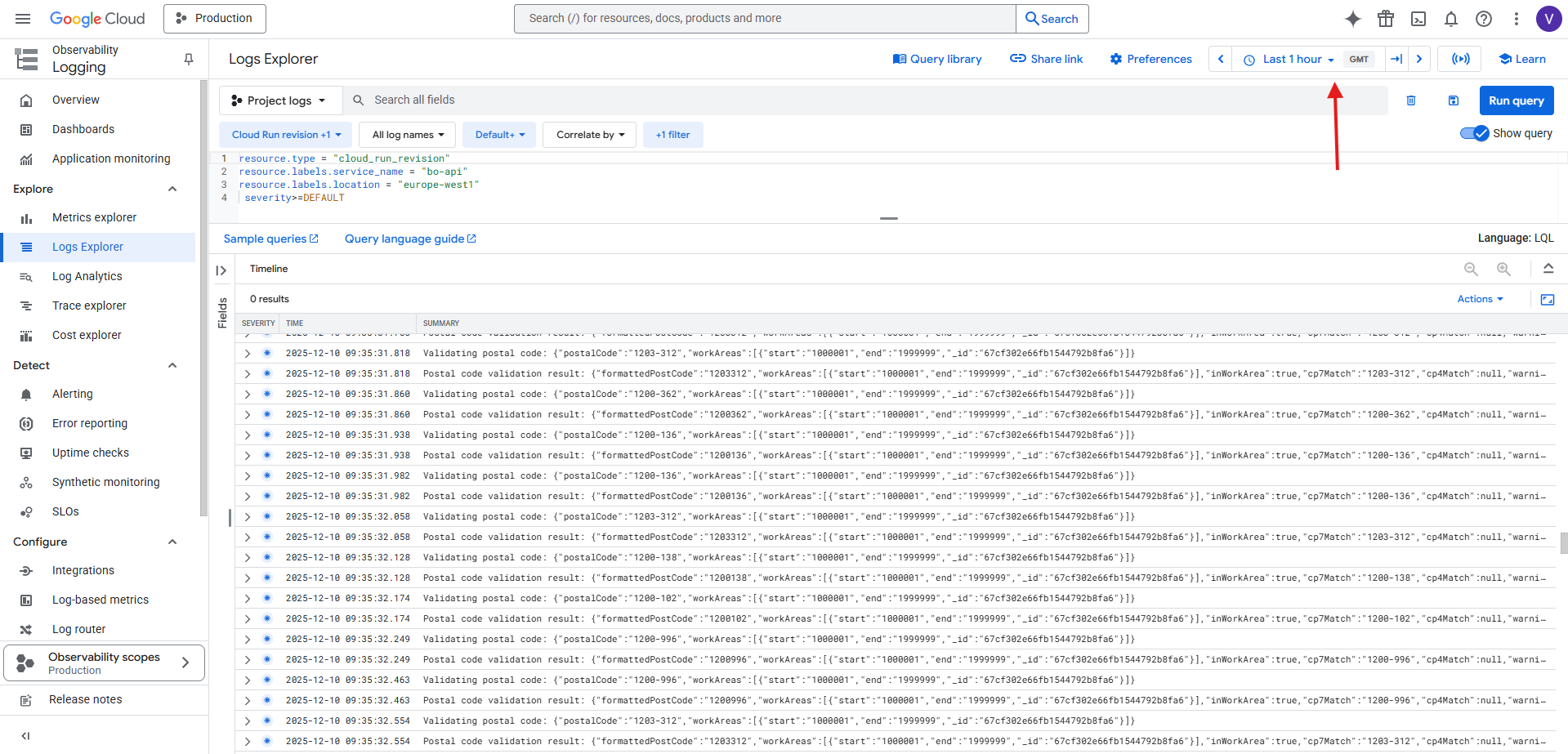
1.2 Accessing Logs via Google Cloud Run
- Open the Google Cloud Console.
- Search for "Cloud Run" in the search bar or navigate through Menu ( ☰ ) → Cloud Run → Services.
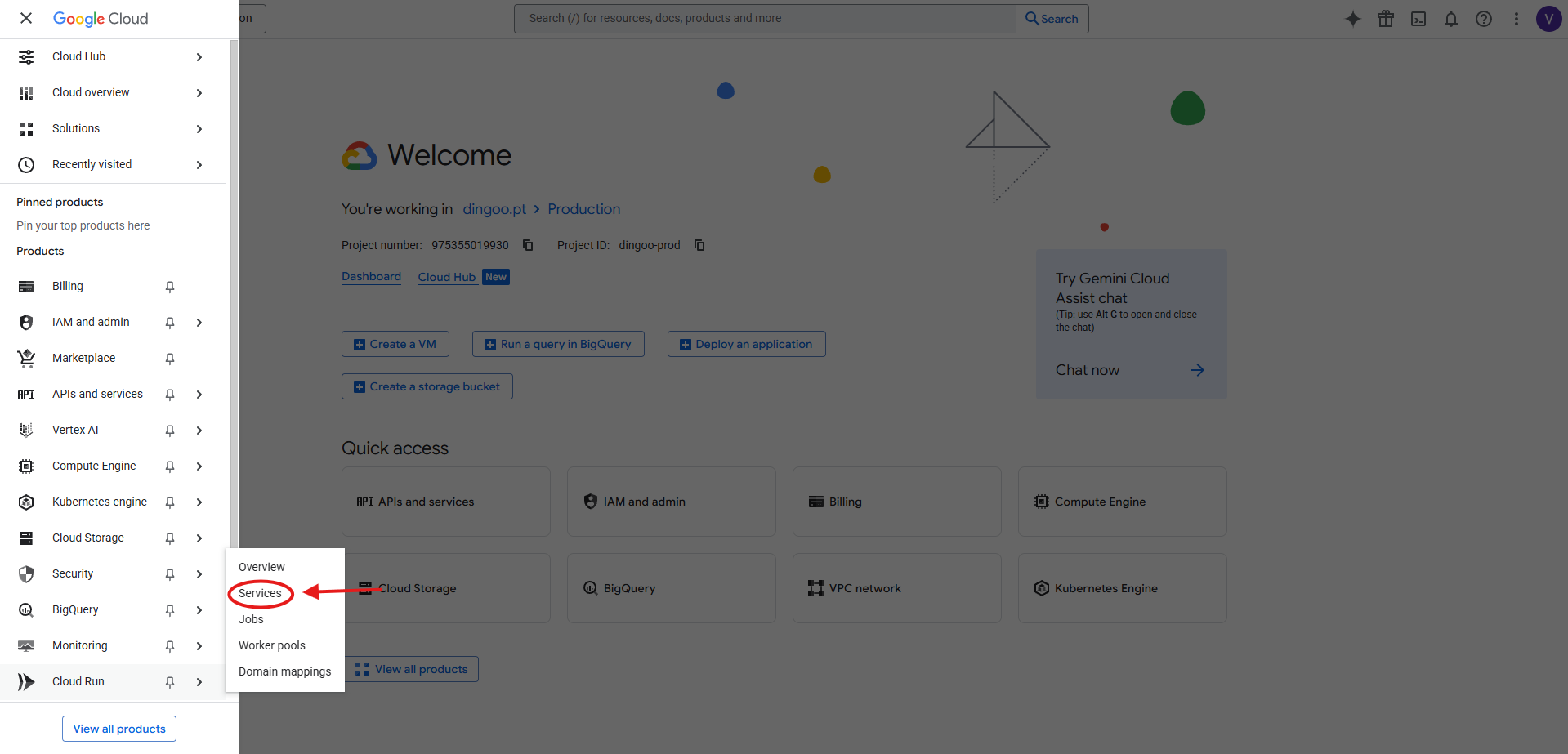
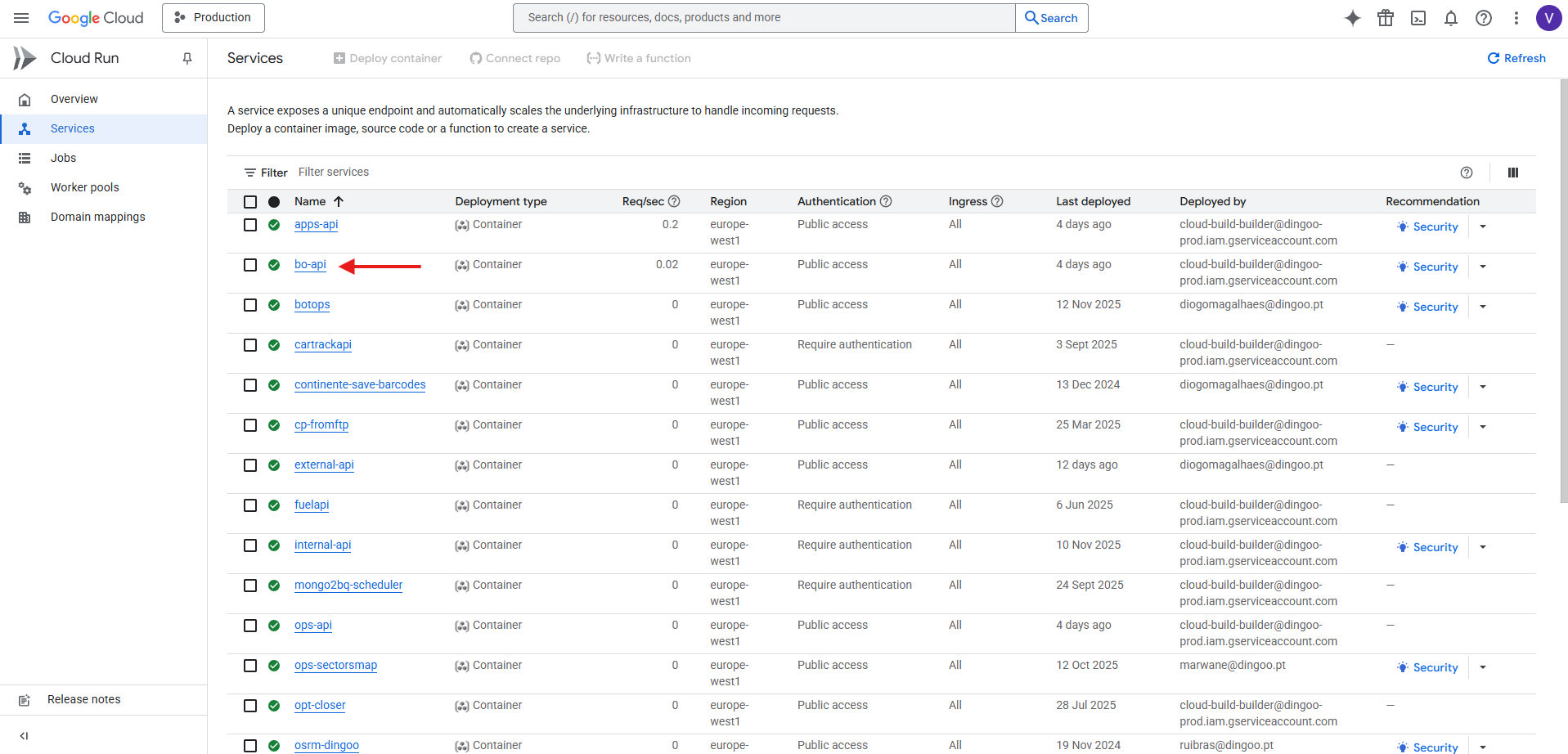
- Select the service
bo-apiand open the Logs tab.
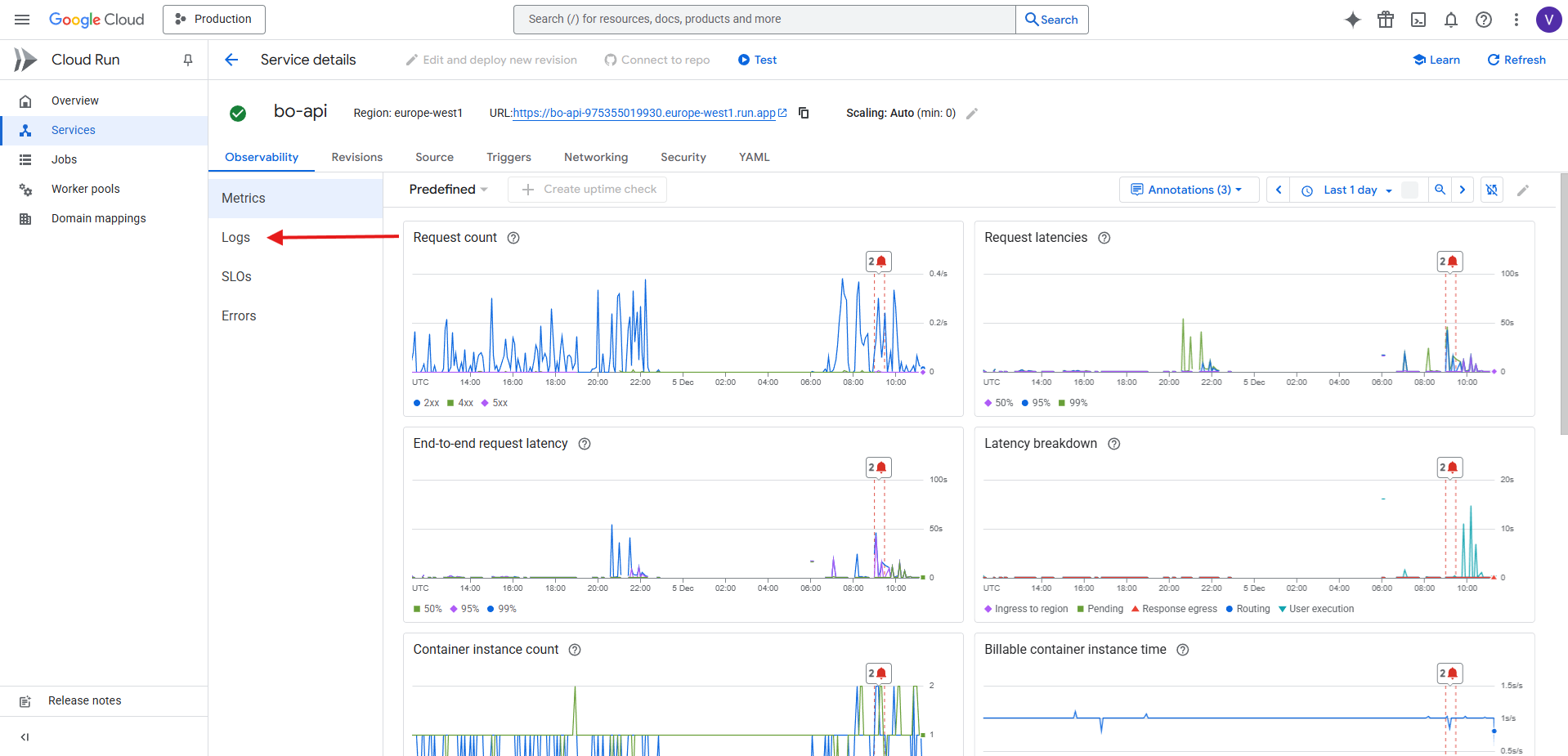
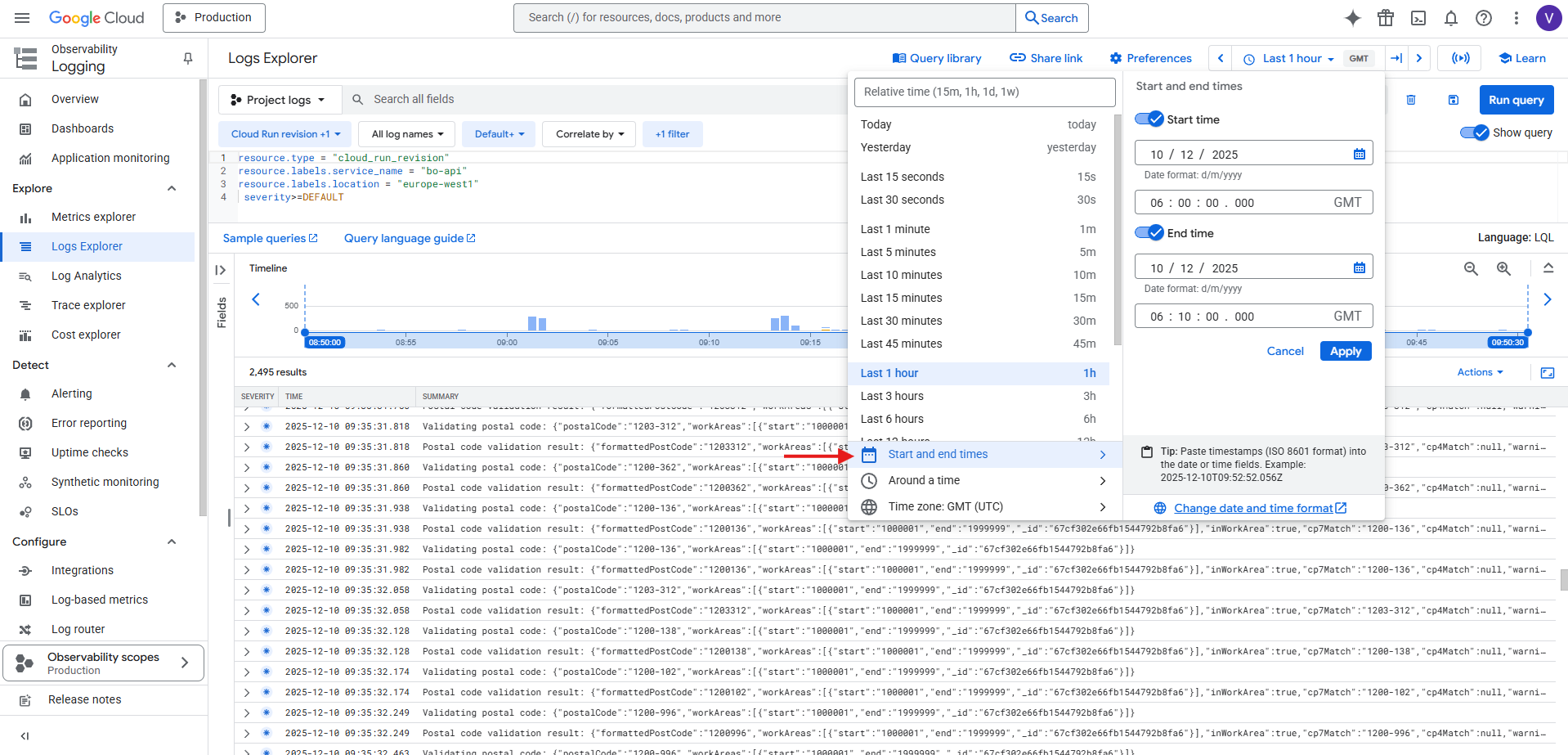
- Click "View in Log Explorer."
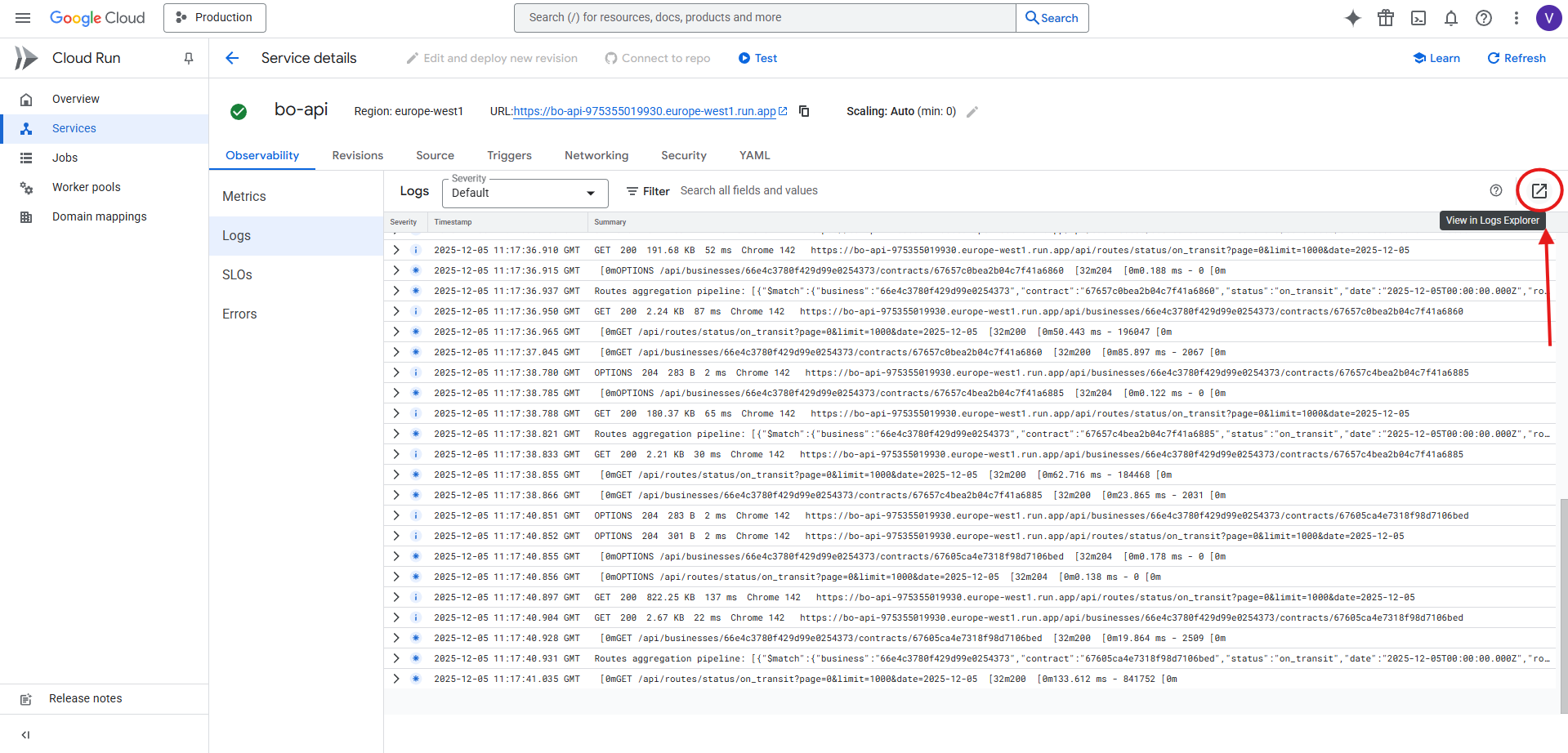
- Set a custom 10-minute timeframe matching the import batch (e.g., 06:00–06:10).
1.3 Log Events to Review
Review the following log events: - Orders Imported Successfully - Updated Orders - Failed Orders
Expand each event and inspect the JSON payload for details.
Note: If you want to only see this events, you can add the next line in the displayed SQL Query
1.4 Error Identification
Check the JSON logs for error messages containing orderIds.
If errors exist:
- Note the affected order IDs
- Only include these errors in the final consolidated summary on Slack
- Do not report errors individually throughout the morning
1.5 Corrective Actions
These are the most common errors that can occur:
- Orders in packing (same day): Do not modify. These orders are in active processing.
- Orders in missing_fields: Do not modify. These require separate manual review.
- Orders in on_transit from previous days: Use the update_orders script.
- Orders in Delivered from previous days:
- Check the order in the CTT API
- Identify the reason for delivery or incorrect delivery date
-
Document this information in the final summary
-
If the file has not been processed: Download the file and check if there are any blank values in the file and try again by uploading it in the chat.
Note: If there is an order with an error on the current day, it means that it has already appeared in another file from an earlier hour. This error may be because the information in both files is the same, or because there was an "Giro" change during the day.
1.6 Daily Summary Procedure
At the end of the morning, prepare a consolidated summary containing: - Total number of imported orders - Total number of updated orders - All detected errors - Notes on manual corrections - Any anomalies found
Post one single summary in the Slack operations channel.
Note: This Google Sheets spreadsheet can be used to help calculate the daily numbers.
2. DPD Daily Monitoring Workflow
2.1 Temporary Orders Check
At approximately 09:10, check the Temporary Orders section in the Dingoo App. If temporary orders exist, proceed to analysis.
2.2 Running the DPD Analyzer Script
- Navigate to the
local-scriptsrepository. - Install dependencies with:
- Run the tool:
- Select:
- DPD Analyzer
- The date to analyze
- Confirm with "Y"
An Excel report will be generated automatically.
2.3 Handling Issues in the Excel Report
If the Excel report contains:
- Orders in on_transit from previous days
- Orders in delivered from previous days
Proceed as follows:
Step 1 — Update Orders via Script
Use the update_orders script to correct the status.
Ensure the customer ID is correctly updated before running.
Step 2 — Update MongoDB Temporary Orders
- Open the
dingoo_proddatabase. - Access the
temporaryorderscollection. - Search for the order using:
- Update the field:
This confirms that the order has been corrected and prevents reprocessing.